

Withdraw funds
Withdraw funds moves money from your company's funding or payment account to one of your company's own bank accounts, registered in advance with Paynetics.
Who can withdraw
The Withdraw Funds button appears only for users with the Manager role whom Paynetics has set up to make withdrawals for the company they are working in. Admin and Basic users never see it.
The company must have at least one active destination account registered by Paynetics.
You are set up per company. If you work in several, check the switcher (top right) shows the right one.
You can only withdraw from the balances of the company selected in the switcher. To withdraw a merchant's balance, switch to that merchant.
To be set up for withdrawals, contact Paynetics support — this can't be changed from the portal. See Before your first withdrawal below.
Before your first withdrawal
Withdrawals are set up by Paynetics, not in the portal. Send us the following in advance — the Withdraw Funds button appears only once both steps are complete.
1. Tell us your destination accounts
Destination accounts must be held outside Paynetics — at another bank or payment provider. A Paynetics account can't be a destination account.
For each bank account you want to withdraw to, send Paynetics support:
Account holder name
Account holder's address - country and town
IBAN.
Bank name.
Currency — EUR.
The company it is for
Each company can have up to 5 active destination accounts. An IBAN can't be changed once registered — to use a different IBAN, ask us to add it as a new account.
2. Sign a power of attorney for each user who will withdraw
Choose which of your users will make withdrawals. They must have the Manager role.
For each of them, sign a power of attorney authorising them to use the company's funds, and send it to Paynetics.
Users are set up per company. A user who withdraws for both the instance and a merchant must be set up for each.
Once we have the power of attorney, Paynetics sets the user up and the Withdraw Funds button appears for them.
Good to know — A user's set-up ends automatically if they lose the Manager role, are blocked, or no longer have access to the company. To set them up again, contact Paynetics support.
Destination accounts
Money can only go to your company's own bank accounts that Paynetics has registered as destination accounts. You can't type in an IBAN or send money to anyone else.
You only see the destination accounts registered for the company you are working in.
Each one shows its IBAN, bank name, account holder and currency.
To add or change a destination account, contact Paynetics support — see Before your first withdrawal above. A deactivated account disappears from the list; past withdrawals to it stay in your history.
Make a withdrawal
Open the funding or payment account and press Withdraw Funds.
Enter the Amount — more than zero and no more than the available balance shown at the top of the form.
Select a Destination account.
Add a Reference and a Comment / Reason. The comment is mandatory and stays with the withdrawal record.
Press Continue.
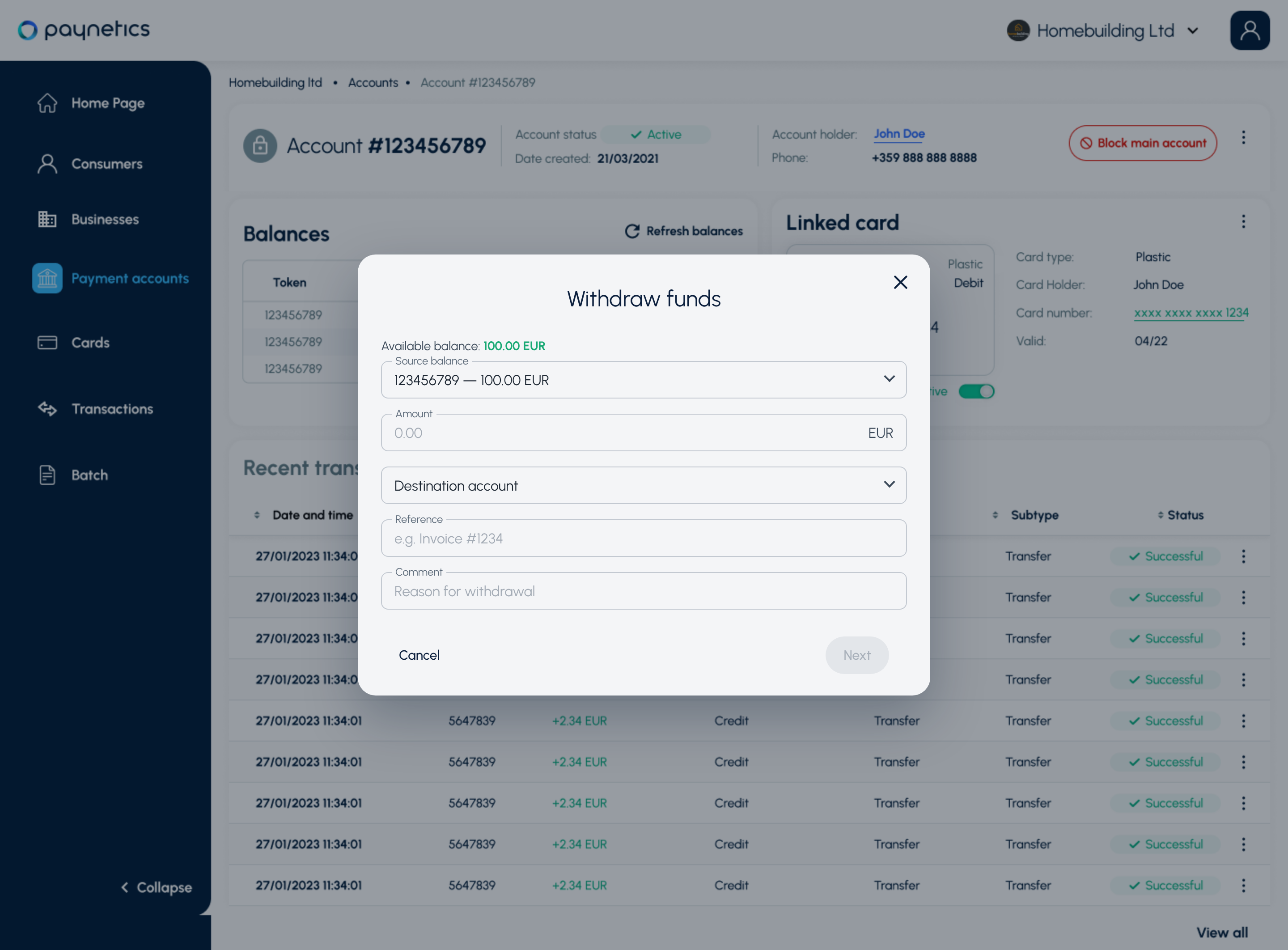 The Withdraw funds form.
Review the details
The review screen shows the amount, the destination IBAN, bank name, account holder and your comment. Press Continue if everything is correct, or Back to change it.
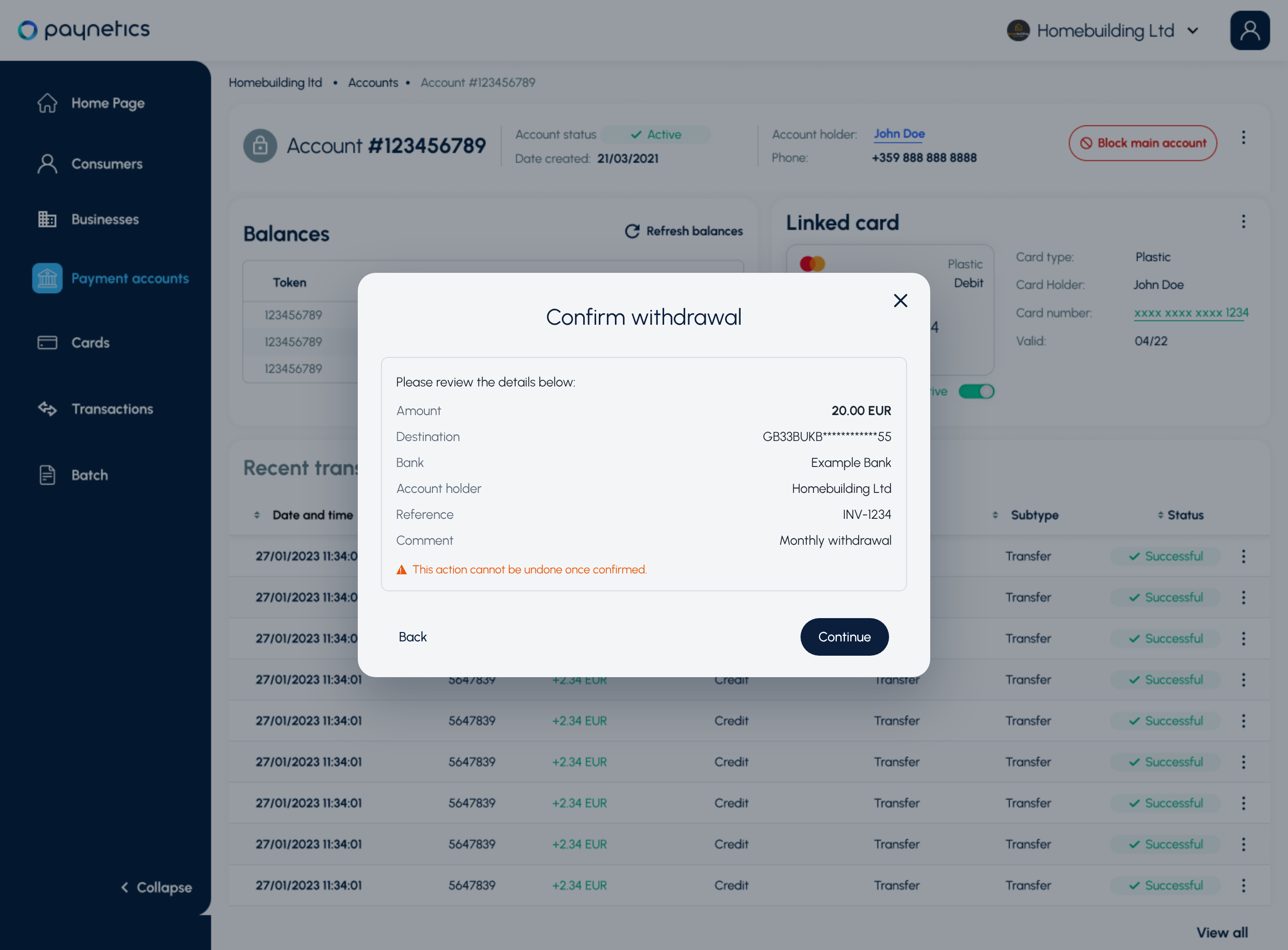
Check the details before you continue.
Warning — A withdrawal can't be undone once it is confirmed.
Confirm with your authenticator code
Every withdrawal needs a fresh one-time code, even though you entered one when you signed in. Enter the 6-digit code from Google Authenticator — or paste it — and press Confirm Withdrawal.
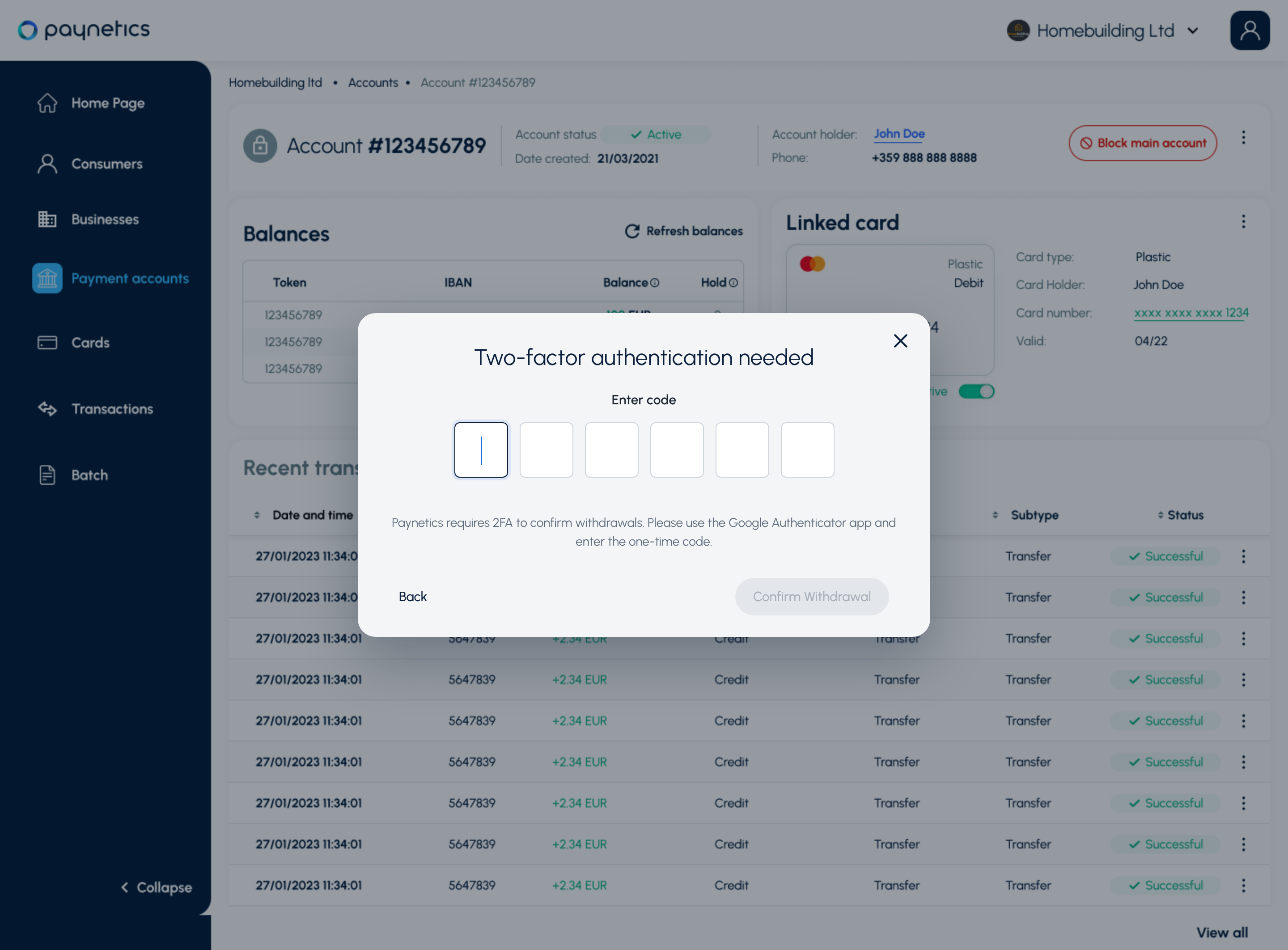 Enter the 6-digit code from Google Authenticator.
Incorrect code — check the app and enter it again.
Code already used — each code works once; wait for the app to show a new one.
Five incorrect codes in a row — you are signed out for your security. Sign in again to continue.
Tip — Lost access to Google Authenticator? Ask an Admin at your company to reset your two-factor authentication.
Cancel a withdrawal
Press Cancel, Back or the close icon at any point before Confirm Withdrawal. Nothing is sent and your balance doesn't change. If your session expires while the form is open, no withdrawal is made.
Track a withdrawal
Once confirmed, the amount leaves the available balance and the withdrawal appears in the account's recent transactions — with who made it and the comment. Its status moves from Initiated to Processing, then to:
Completed — the money has been sent to your destination account.
Failed — the transfer couldn't be completed and the amount is returned to your available balance.
Withdrawals are sent as standard SEPA credit transfers in EUR.
If a withdrawal doesn't go through
Insufficient balance — the amount is higher than what's available, for example because another withdrawal went through first. Enter a lower amount.
Destination account no longer available — Paynetics deactivated it while your form was open. Start again and choose another account.
Service temporarily unavailable — no money has moved. Try again later.
Duplicate blocked — the same amount to the same account was submitted a moment ago. Check your recent transactions; the first one has most likely gone through.
Not permitted — your permission to make withdrawals was removed. Contact Paynetics support.
Pressing Confirm Withdrawal more than once creates only one withdrawal.