

OCT settlement split
If you send OCT payouts through Paynetics, you can have part of your acquiring settlement paid straight into your OCT account, so you top it up less often by hand. You set the split as a percentage for each account, and the rest of the settlement is paid to your settlement account as usual.
For how the split is calculated and reported, see OCT Settlement Split in the Acquiring documentation. This article covers setting it up in the portal.
Before you start
OCT split must be turned on for your company. The merchant must be enabled for OCT Split by Paynetics. Until then, the split option does not appear in the portal. To have it turned on, contact your Paynetics relationship manager or the Paynetics support team.
It covers all your accounts. Once OCT split is on, it is available on every account your business holds.
It is for business accounts only. Consumer accounts do not have a split option.
You need the Manager role. Only Managers can set or change the split.
You need Google Authenticator. Each change is confirmed with a code from the app, the same one you use to sign in.
Set the split percentage
Open the business's payment account - from the Payment accounts list, or from the accounts on the business profile. The Balances section lists the account's balances, with a Split column.
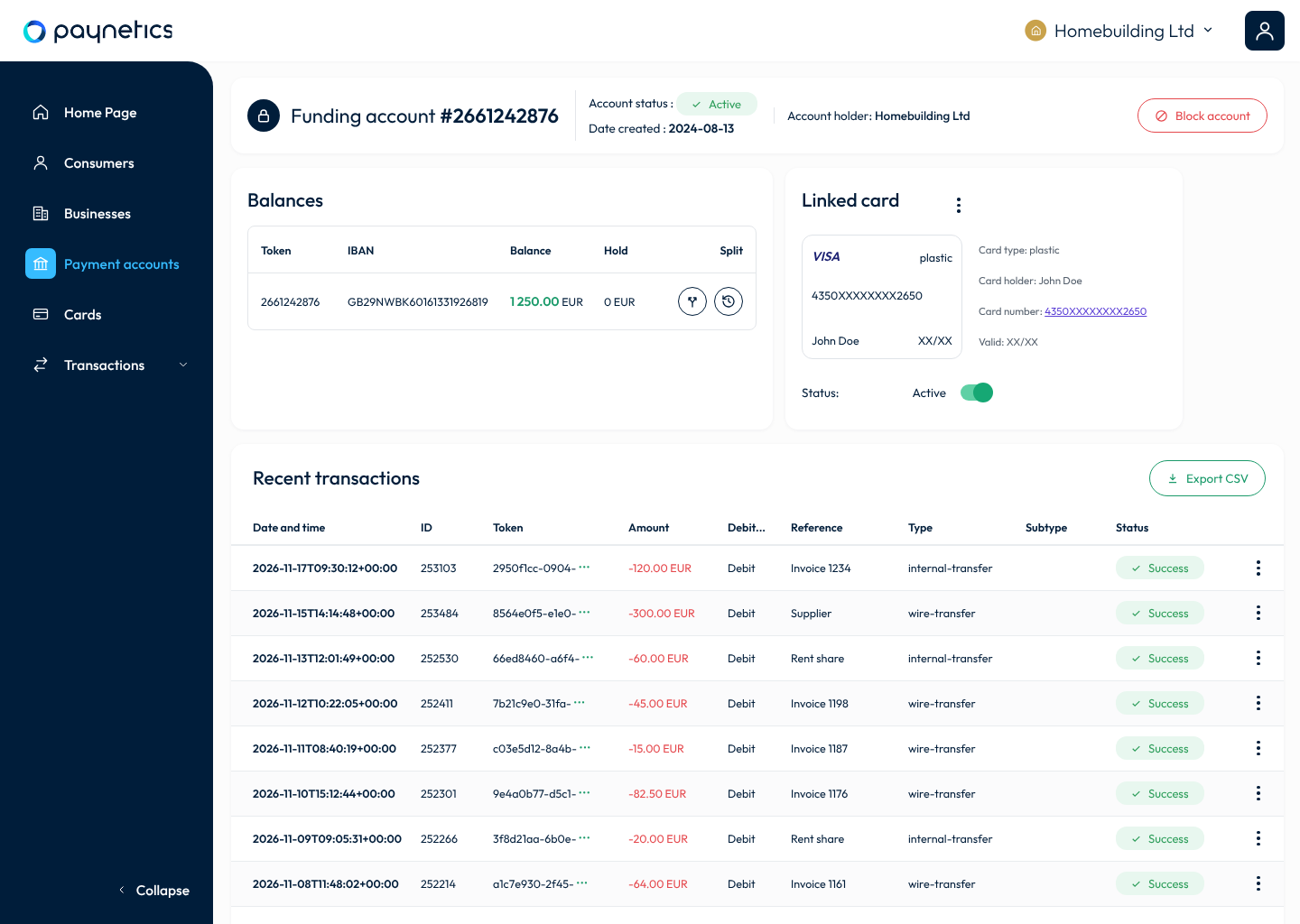 The Balances section, with the split and split history icons in each row.
Press the split icon in the balance's row. The Split balance window opens.
Enter the percentage in the Split field - any value from 0 to 100, with up to two decimal places (for example 12.5 or 33.33). Press Continue.
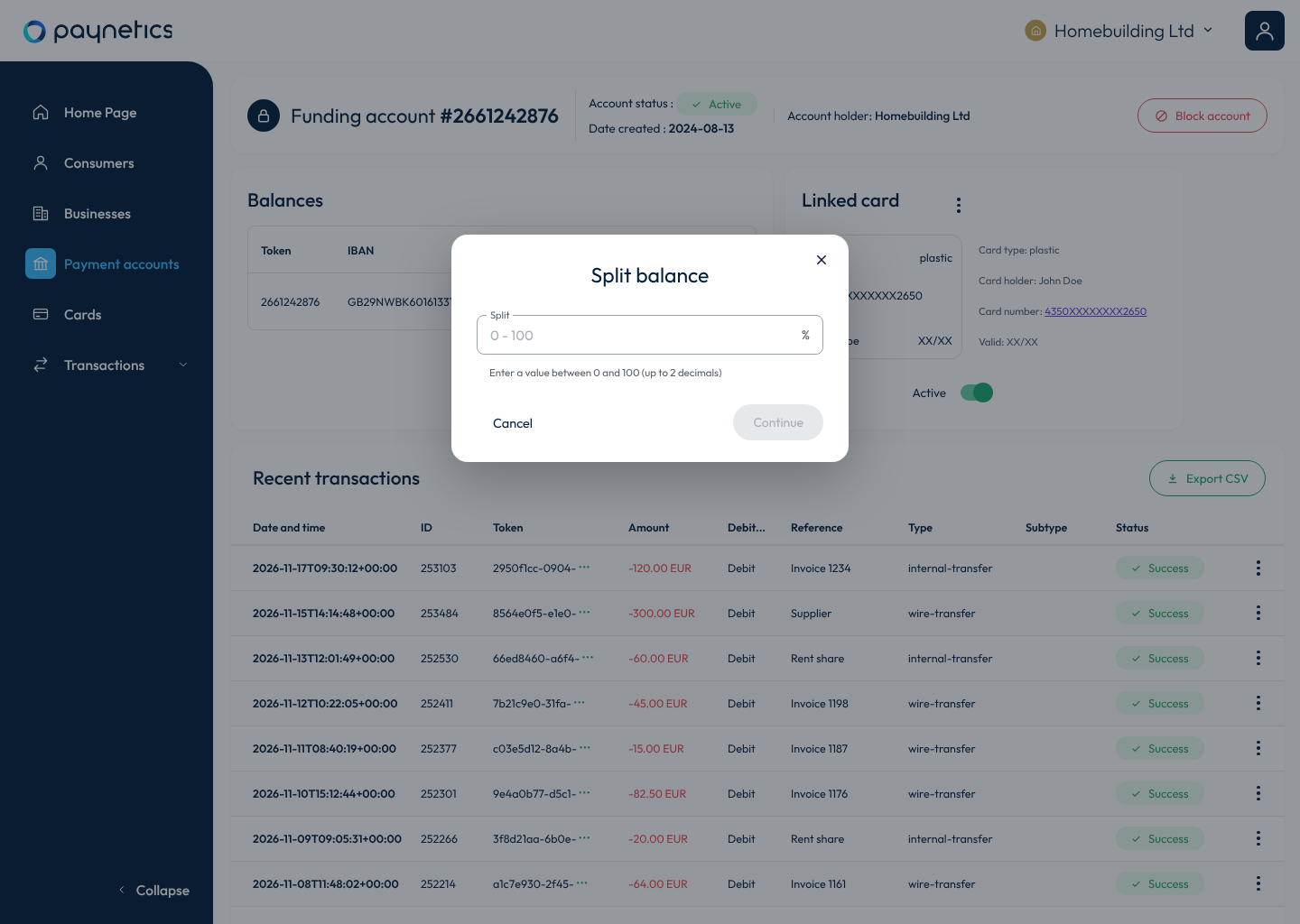 Enter the percentage, then press Continue.
Enter the 6-digit code from Google Authenticator and press Confirm split. Press Back if you want to change the percentage first - what you entered is kept.
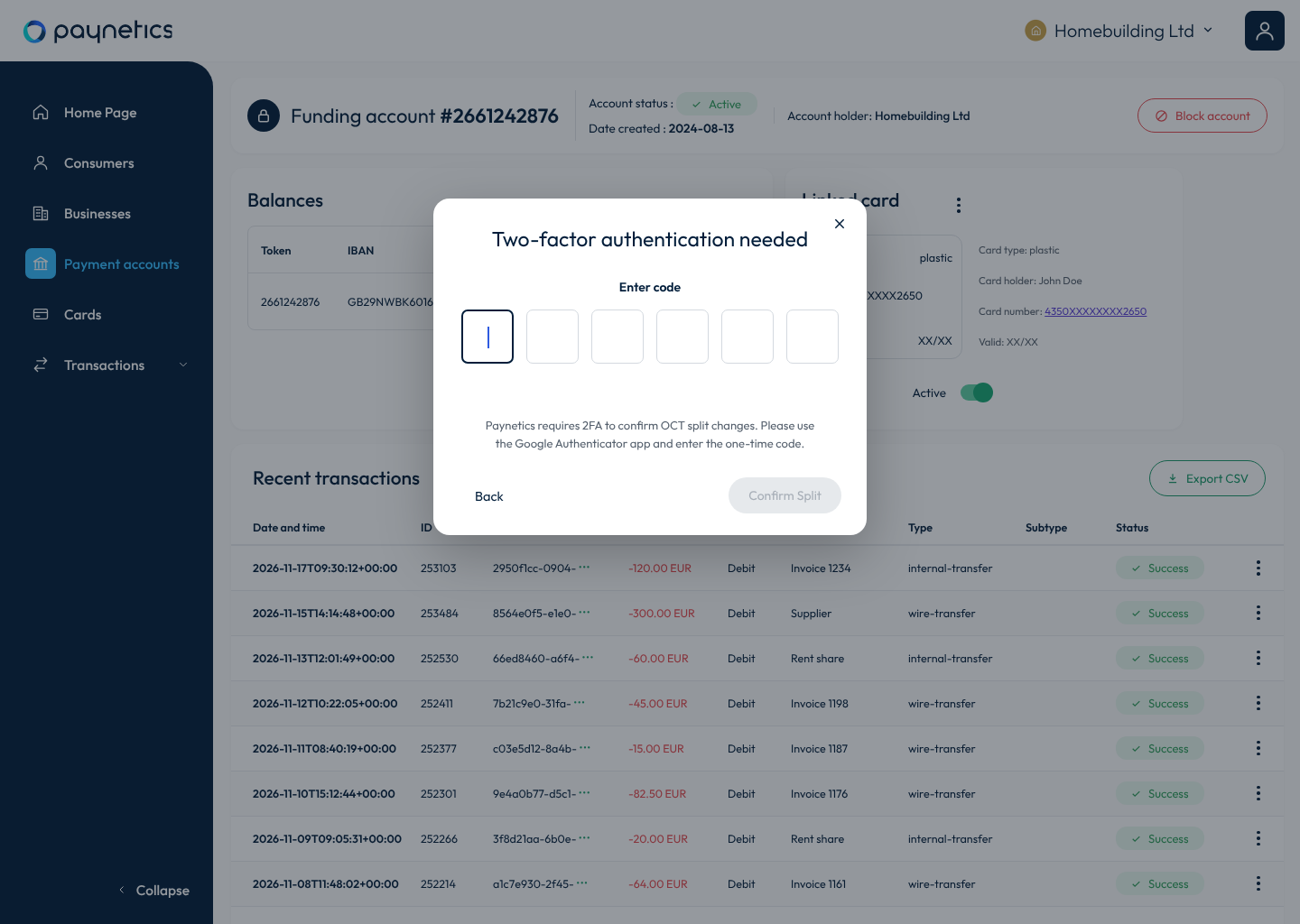 Confirm the change with your Google Authenticator code.
The portal confirms the date your change takes effect.
If the code is not accepted, the boxes turn red. Wait for a new code in Google Authenticator and try again.
Check the active split and its history
Press the history icon - the clock next to the split icon - to open Split history. It lists every percentage set on that balance, with its date and time. The entry at the top is the split that applies now.
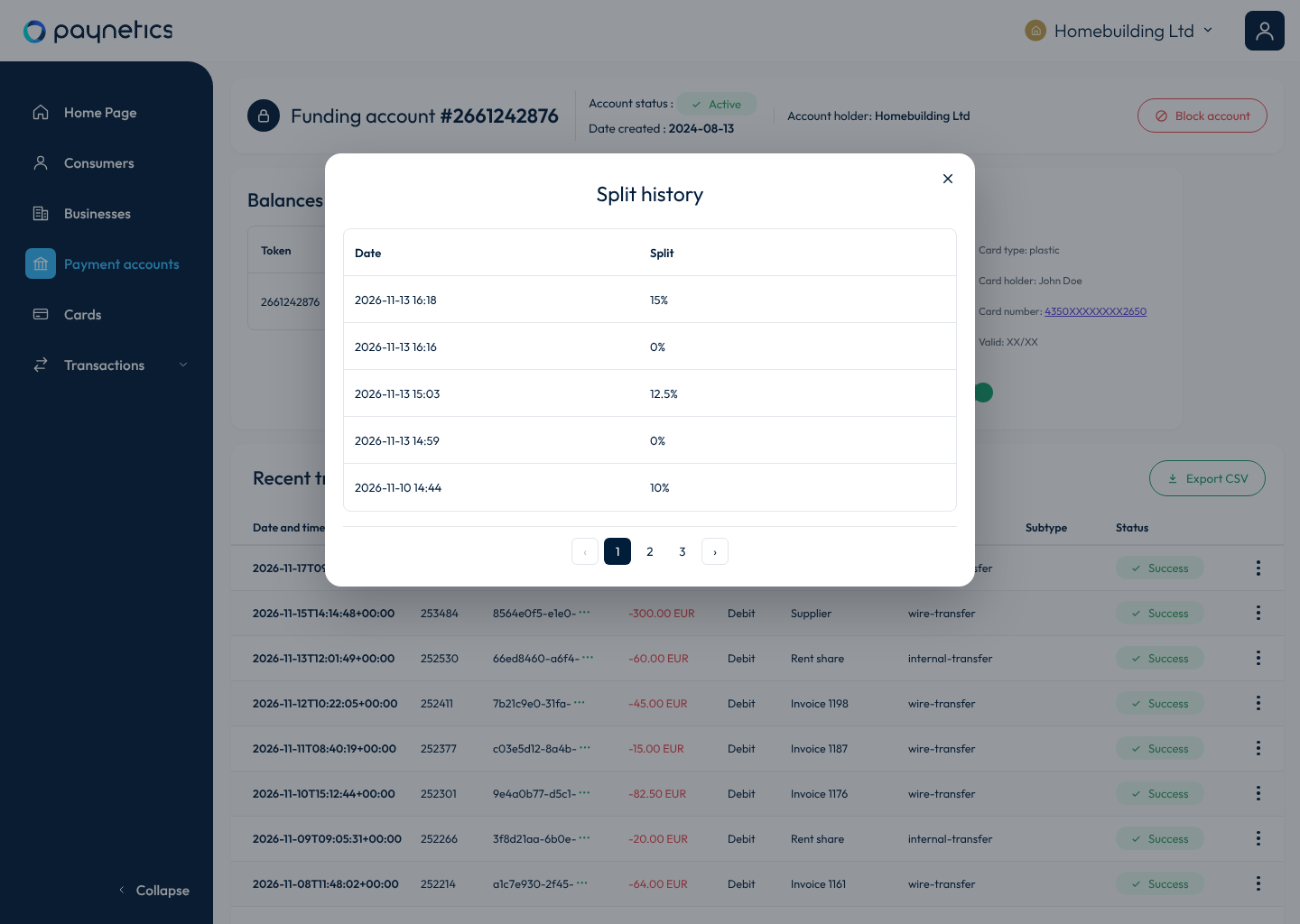 Split history - the entry at the top is the active split.
Change or stop the split
To change the split, set a new percentage the same way. The latest entry always replaces the one before it.
To stop the split, set it to 0. The full settlement is then paid to your settlement account again.
Good to know
Changes apply from the next settlement cycle. Settlements that are already calculated or in progress are not affected.
Each account is set separately. Changing the split on your EUR account does not change your GBP account.
A currency only funds the OCT account in the same currency. There is no conversion between currencies.
The split does not guarantee your OCT account always has enough funds. Keep an eye on your OCT balance and top it up when volumes are high, for example at weekends or during promotions.