

Account statements
You can download official Paynetics documents straight from the portal whenever a customer, auditor or bank asks for proof. Each document is a PDF in English or Bulgarian, and is created the moment you request it.
Account status letter - confirms that an account is open, or that it was closed and when.
Balance confirmation - confirms an account's balance on a date you choose.
Payment confirmation - confirms a single card payment.
Transfer confirmation - confirms a single transfer into or out of an account.
Documents for a payment account
The account status letter and the balance confirmation both live in the account's three-dot menu. You can open it from the Payment accounts list, or from the accounts on a consumer or business profile.
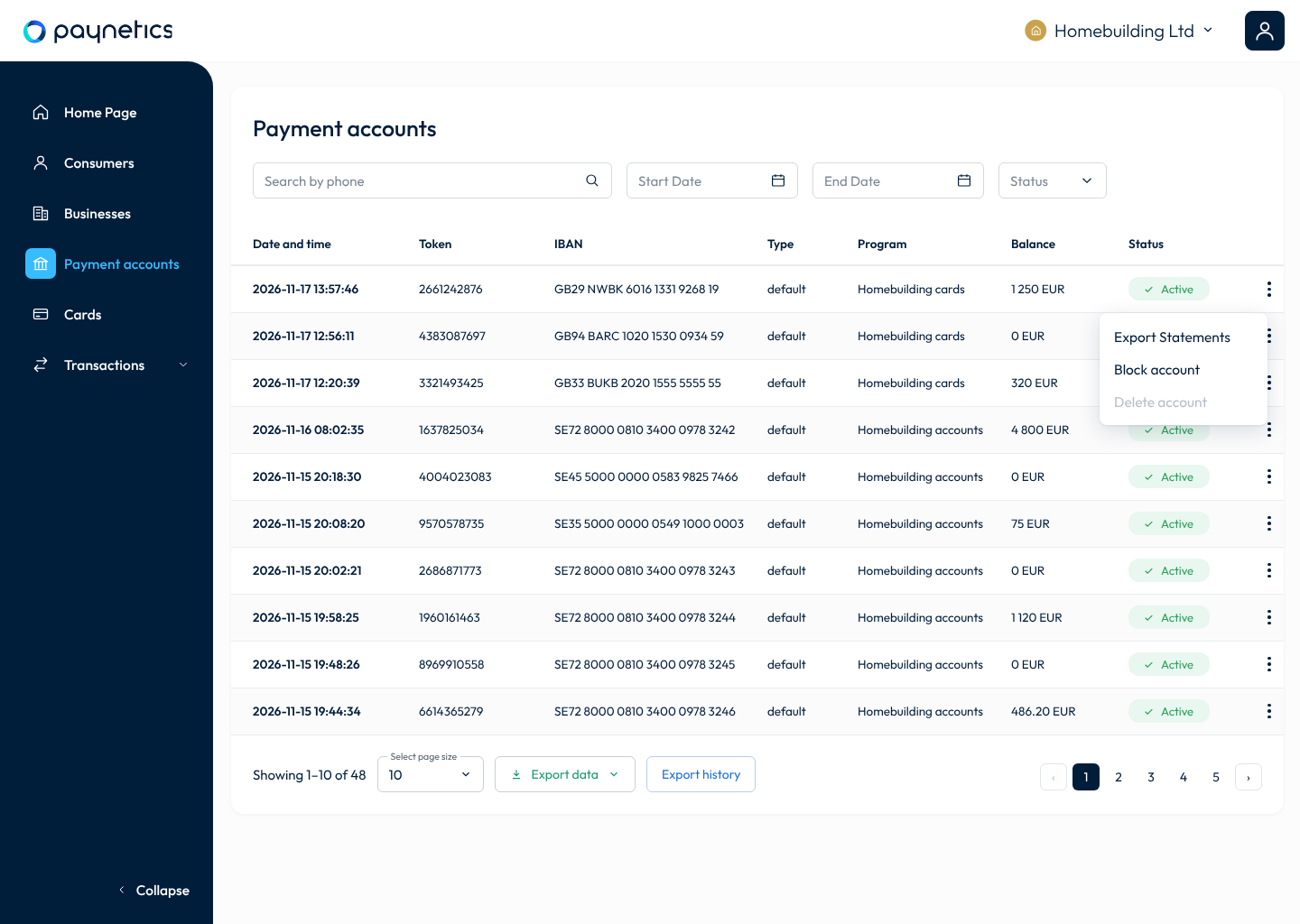 Export Statements in an account's three-dot menu.
Export Statements opens Account Exports, with two tabs: Status and Balance Confirmation. The account's IBAN sits at the top - or its sort code and account number, if it has no IBAN - so you can check you have the right account.
Get an account status letter
Open the account's three-dot menu and select Export Statements. The Status tab opens first.
Choose the language - EN or BG. The format is always PDF.
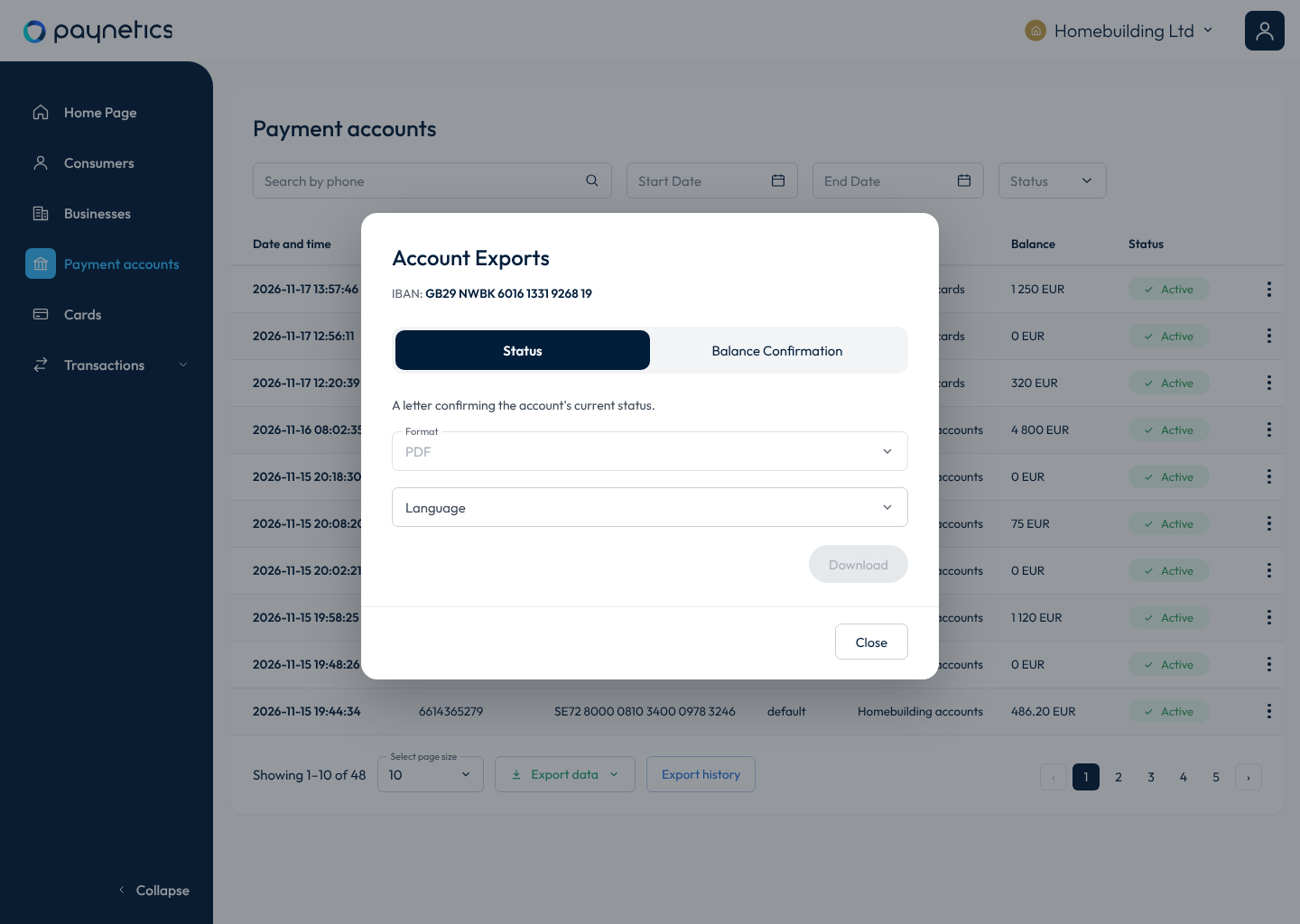 The Status tab - choose the language, then press Download.
Press Download and wait for your file - see Download your file below.
You do not choose the type of letter - it follows the account. An open account gets an account opened confirmation; a closed account gets an account closure confirmation with its closure date. Closed accounts keep Export Statements in their menu, so you can still get the closure letter after the account is closed.
Get a balance confirmation
Open the account's three-dot menu, select Export Statements and switch to the Balance Confirmation tab.
Pick the date you want the balance confirmed for.
Choose the language - EN or BG. The format is always PDF.
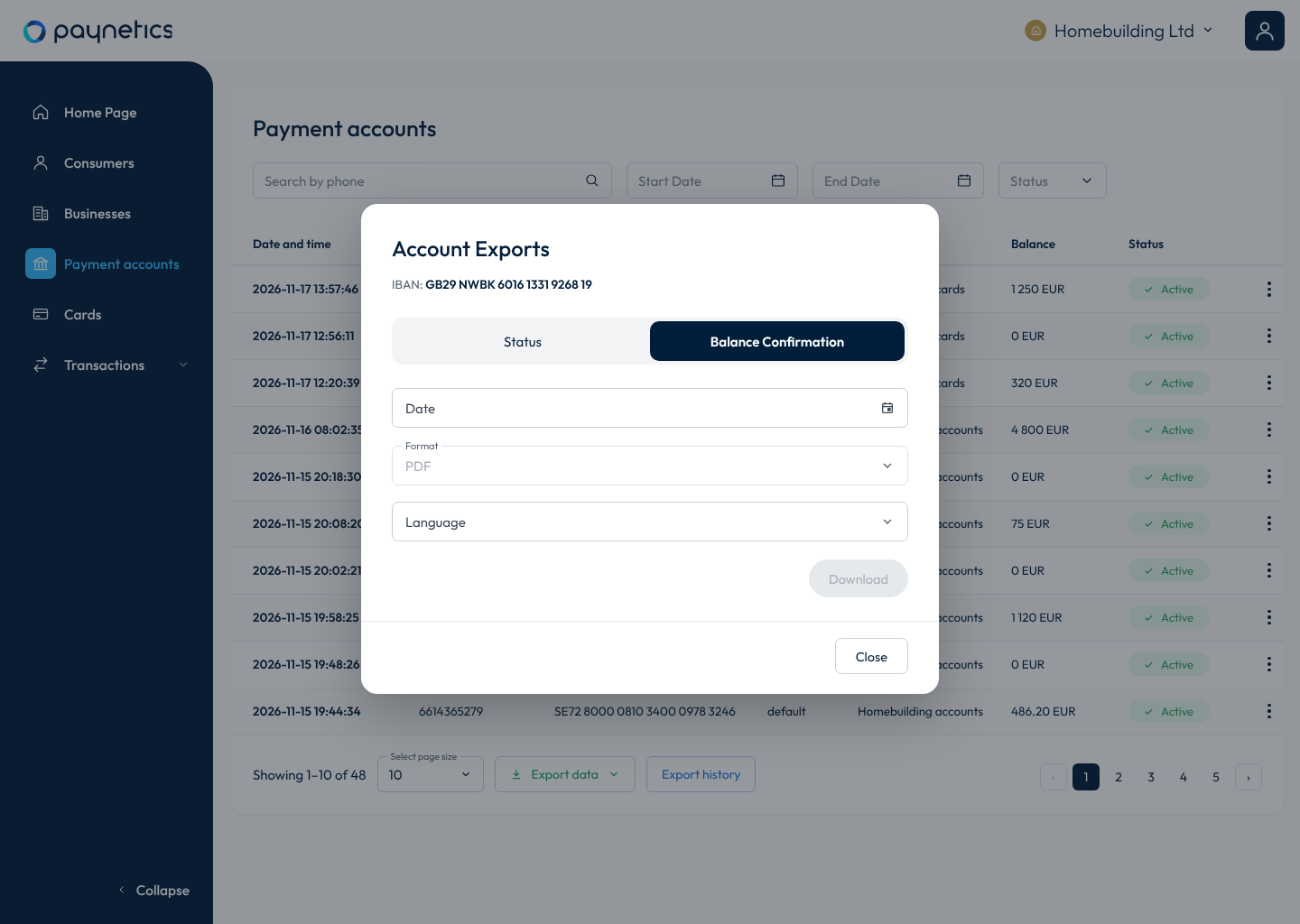 The Balance Confirmation tab - pick a date and a language.
Press Download and wait for your file.
Documents for a transaction
A payment or transfer confirmation lives in the transaction's three-dot menu. You can open it from the Issuing transactions list, or from the recent transactions on a consumer, business, payment account or card page.
Open the transaction's three-dot menu and select the confirmation it offers - Export payment confirmation for a card payment, or Export transfer confirmation for a transfer.
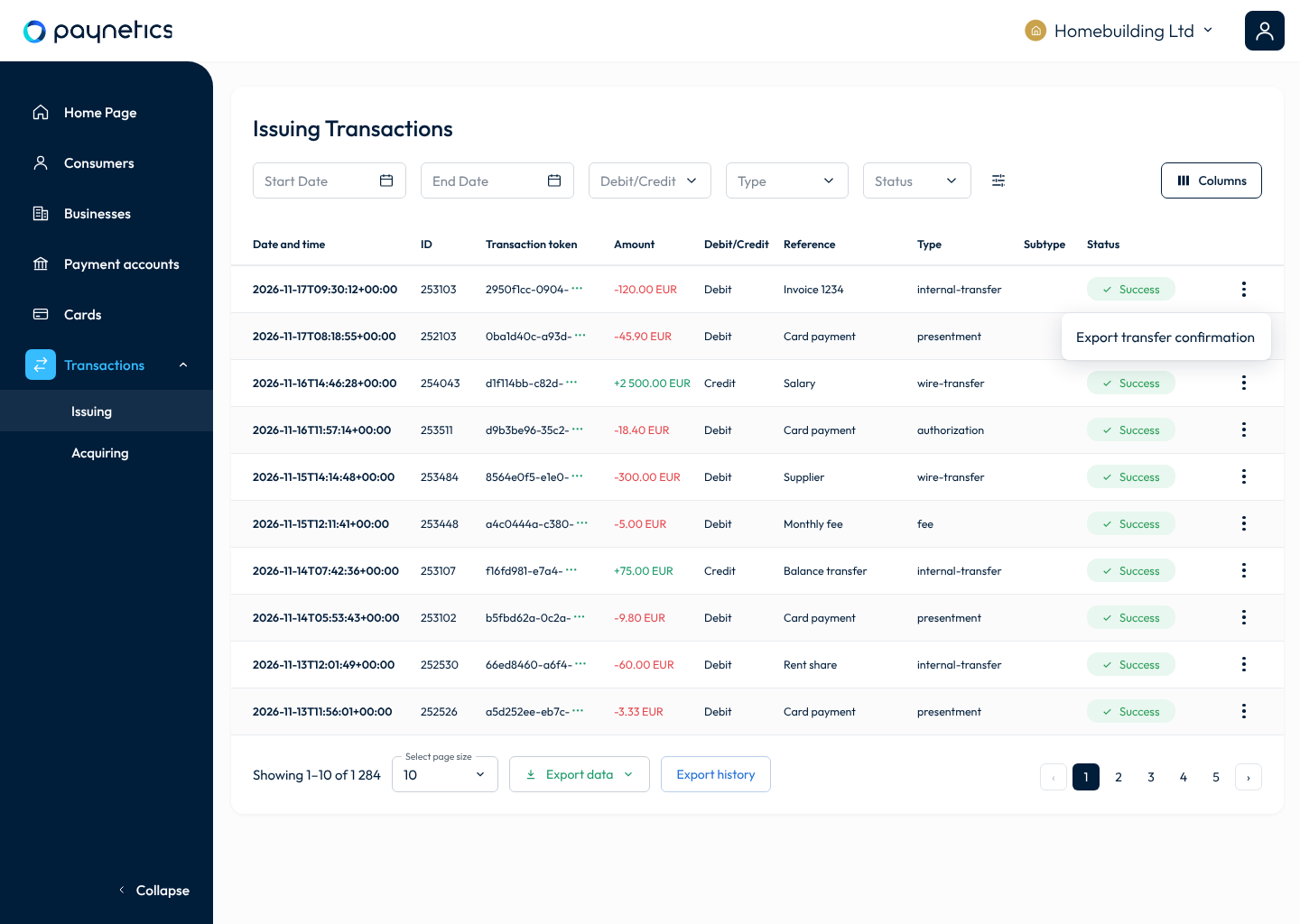 The confirmation option in a transaction's three-dot menu.
Choose the language - EN or BG. The format is always PDF. A transfer opens Transaction Confirmation; a card payment opens Payment Confirmation.
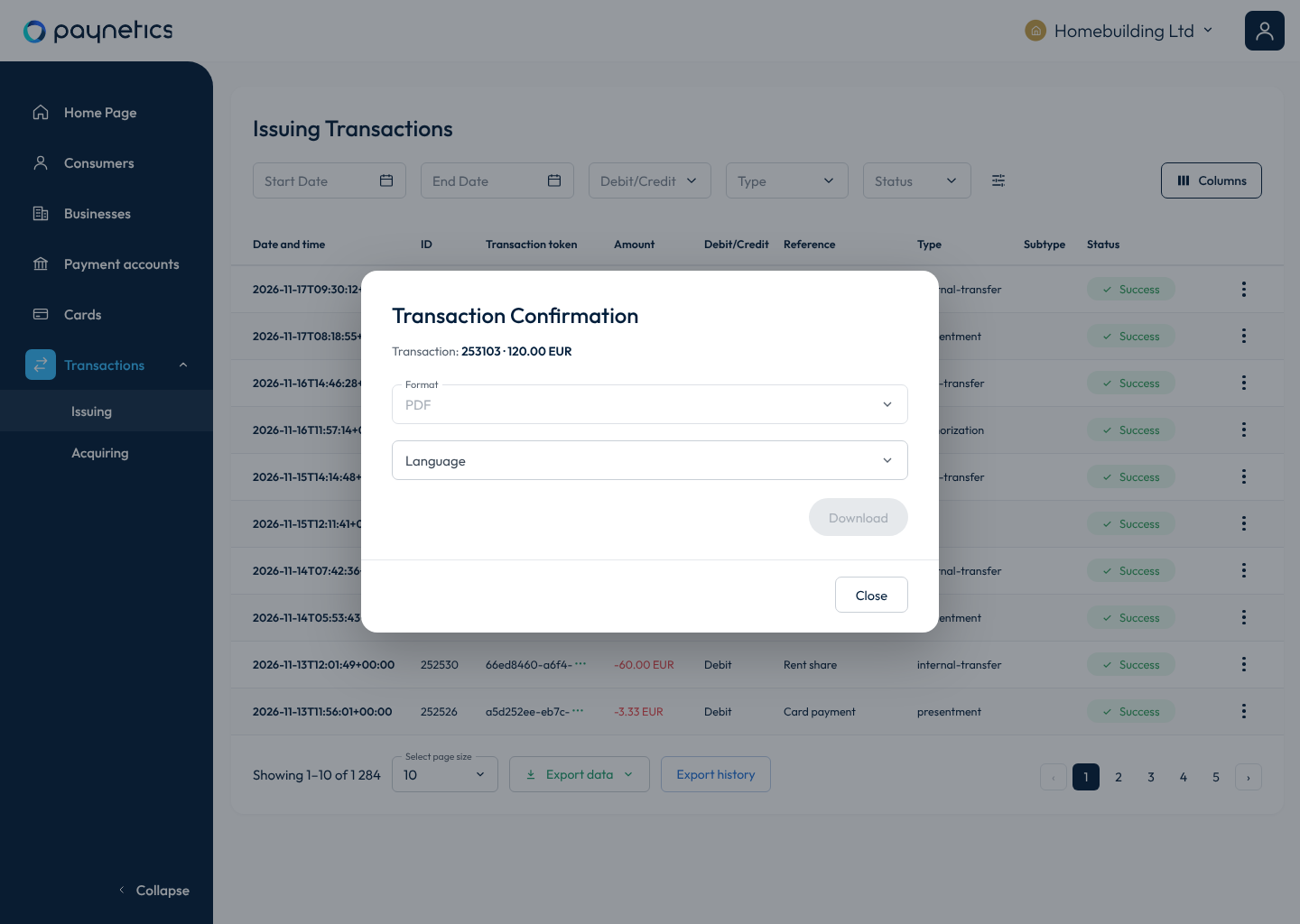 Transaction Confirmation, for a transfer.
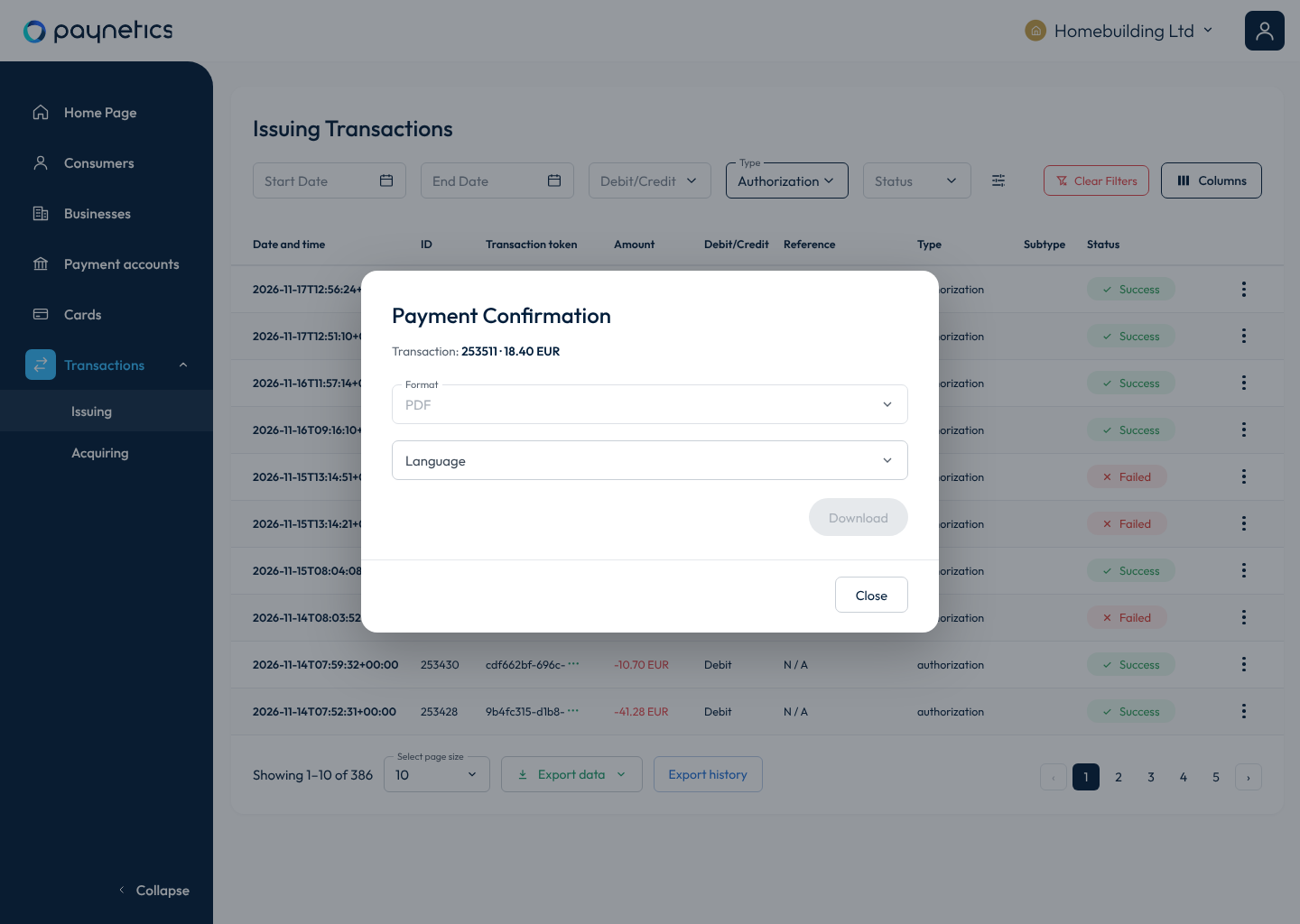 Payment Confirmation, for a card payment.
Press Download and wait for your file.
Which transactions have a confirmation
Card payments and transfers only - card payments made with a card, and transfers in either direction. Other transactions, such as fees or loads, have no confirmation option.
Successful transactions only - for a pending or failed transaction, the option is greyed out.
Download your file
Your document is prepared after you press Download - it does not download on its own.
Wait while the portal shows Generating the file….
When it shows Your file is ready, press Download file to save the PDF.
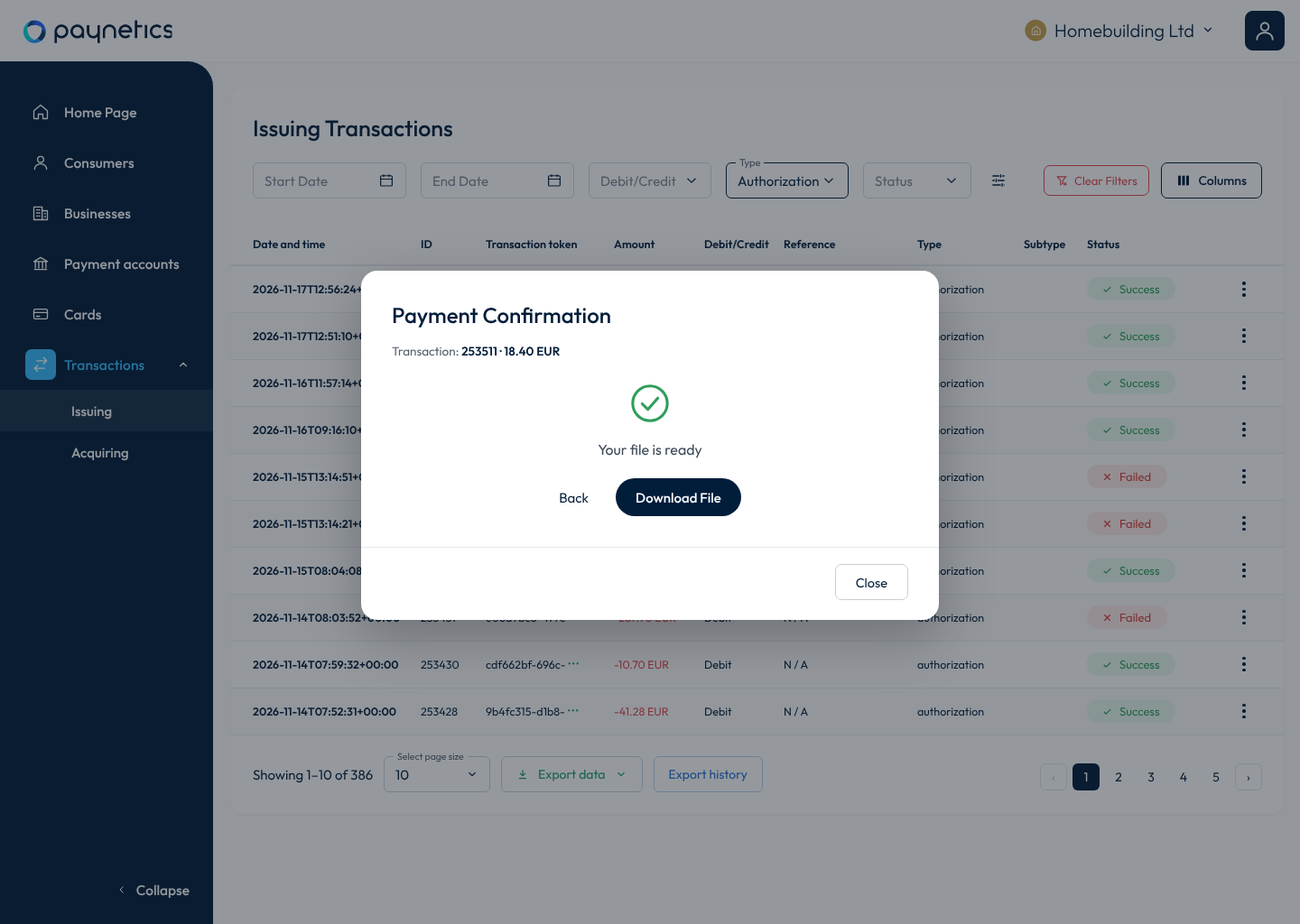 Your file is ready - press Download file to save it.
Good to know
If your browser blocks the download or you cancel saving, the file stays ready - press Download file again, without creating it again.
If the document cannot be created or your connection drops, the portal says so and lets you try again. No incomplete file is saved.
Statements are available to the Manager and Basic roles. Admins do not see these options - see Admin panel for what each role can do.
You only see accounts and transactions of the companies you have access to. For where to find an account or a transaction, see Managing records.