

Managing Records
Managing records covers the five record types in the portal — consumers, businesses, payment accounts, cards and transactions. Each has its own list you can filter, and a detail page you open from it.
Consumers
The Consumers tab lists every individual customer. Filter by name, email or registration date to find someone fast.

Search by email or name, or narrow by date range.
The consumer profile
Click a consumer's name to open their profile. Each consumer carries two statuses: consumer status — active or blocked — and KYC status — verified or not verified.

Personal details, consumer status and KYC status sit at the top of the profile.

Below that, the consumer's payment accounts, cards and recent transactions.
Businesses
The Businesses tab lists every business connected to your organisation. Search by name or phone, or narrow by registration date.

The main Businesses page - status, enabled and API access at a glance.
The business profile
Click a business's name to open its profile.

Business details, funding accounts and breakage accounts at the top.
 Business’ cards and recent transactions below.
The profile shows every account belonging to the business — funding accounts and all payment accounts.
Deactivate any of the business's cards via its toggle in the All cards panel.
Add a payment account directly from the profile with the Add new account button.
Payment accounts
The Payment accounts tab lists every account across your organisation — with its balance, account holder and status. Search by token, IBAN or account holder, or narrow by date.
 All accounts — search, filter and open any account from here.
The account page
 An account's balances, linked card and recent transactions.
An account holds multiple balances if it operates in more than one currency.
A card linked to the account shares the account's balances.
Recent transactions sit at the bottom — press View all for the full history.
Block / unblock a payment account
Both actions live on the account's page and ask for confirmation before anything happens. A blocked account shows a banner across the top of its page; unblocking works the same way and makes the account active again.
 A blocked account announces itself across the whole page.
Warning — Blocking a payment account also stops every linked card and every action on that account until it is unblocked.
Cards
The Cards tab lists every issued card, virtual or plastic, with its holder, status and quick controls. Narrow the list with Search by phone, a Start and End date, and Type.
 The Cards list — filters, card holder, status and quick controls per row.
Four routes to any card
From the Cards menu — filter the full list.
Through the owner — open a consumer or business profile and scroll to their cards.
From a linked payment account — the card sits on the account's page.
Card details
 Card details — the linked account, status toggle and the card's recent transactions.
A card's page shows its details — including whether it is virtual or plastic — and balances in every currency it holds.
Block or unblock a card instantly with its status toggle.
Recent transactions for the card sit below its details.
Reset & remind PIN
Both actions live in the card's three-dot menu.
 The three-dot menu on a card, with Reset pin and Remind pin.
Remind PIN — sends the current PIN to the cardholder by SMS.
Reset PIN — issues a new PIN by SMS. If the card was blocked after three wrong attempts, resetting also unblocks it.
Block or unblock the card itself with its status toggle.
Transactions
The Transactions tab holds every transaction across your accounts and cards. Use the filter row to narrow the list down — dates, debit or credit, and other filters that depend on the section you are in — to isolate what you are looking for.
Account, Card and Acquiring
Account, Card and Acquiring transactions sit in separate sections, and each has its own set of filters.
 The Transactions list with its filter row above the results.
Open a transaction
Open a transaction to see its full record across two tabs — Details holds the amounts, dates, references and any uploaded documents, while Sender and Receiver shows both sides of the payment: names, IBANs, banks and addresses.
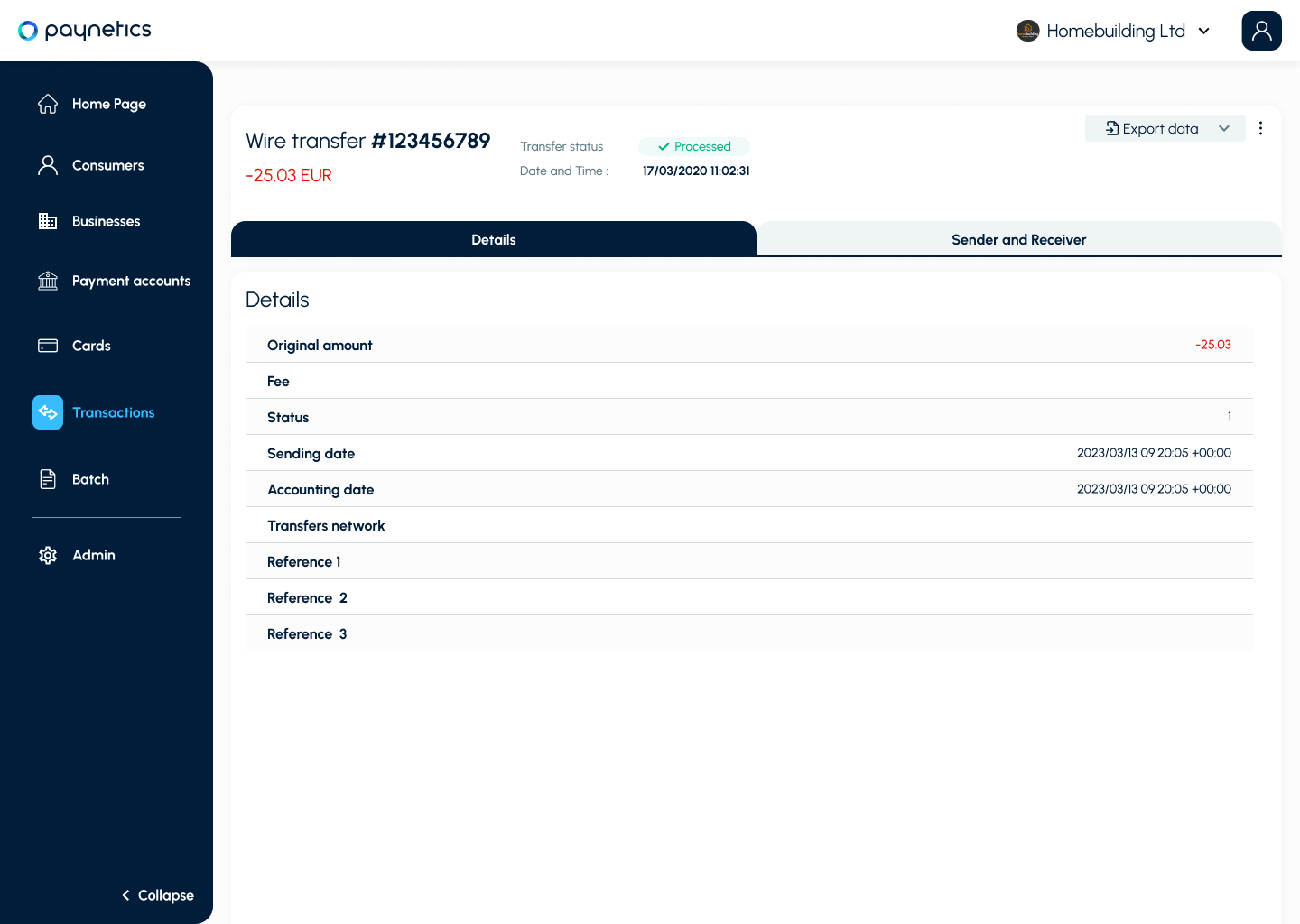 The Details tab — amounts, dates, references and uploaded documents.
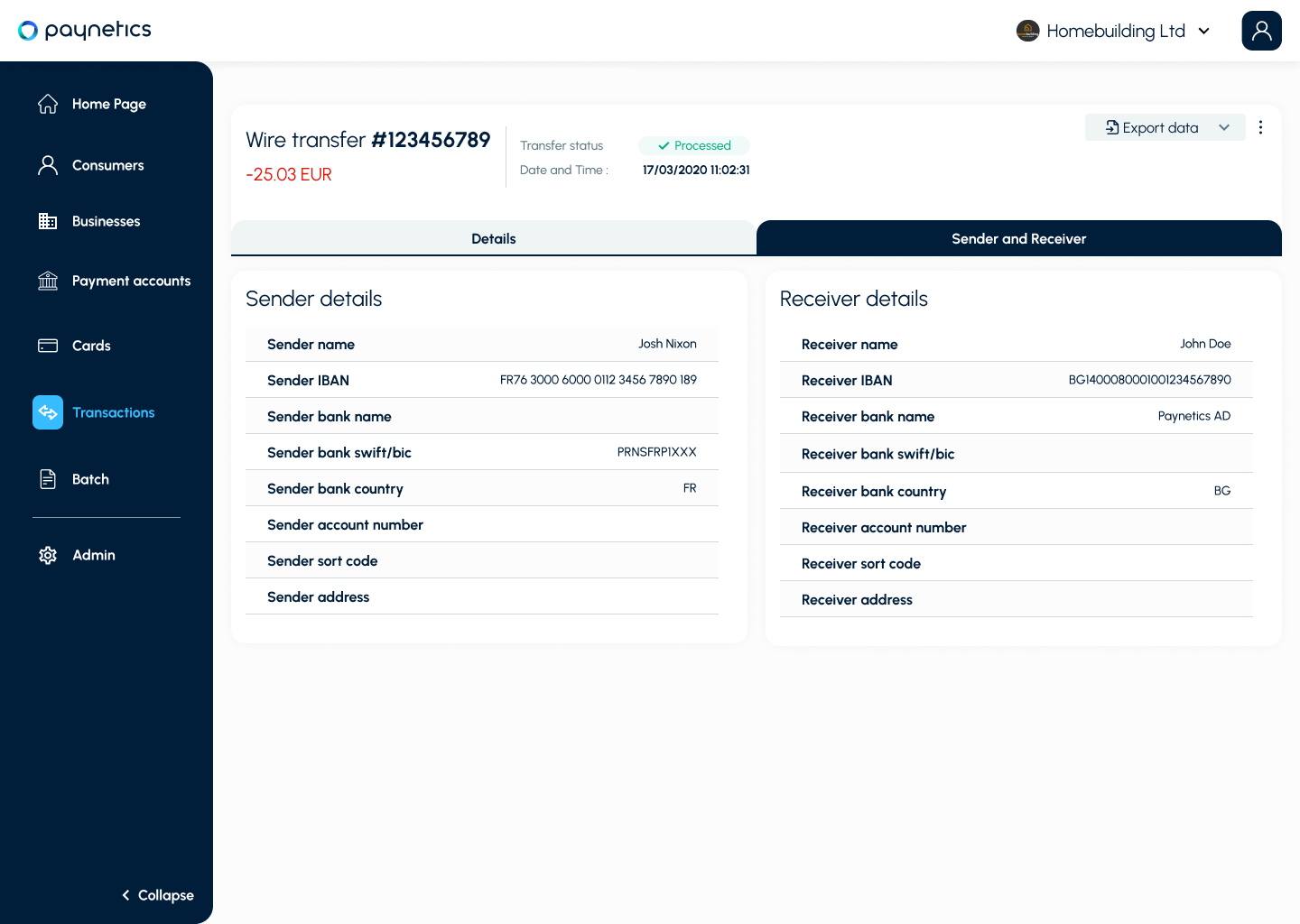 The Sender and Receiver tab — both sides of the payment.
To pull the filtered list out of the portal, see Export transaction data.