

Admin Panel
The Admin panel is where your company's Admins create portal users, decide what they can see and do, and manage their access.
Roles
Every user has one role, and it applies to every company they have. Switching company changes the data they see, never their role.
Admin — manages users in the Admin panel. Sees the Home page and the Consumers, Businesses and Batch lists, but can't open individual records or take operational actions. Doesn't see Payment accounts, Cards or Transactions.
Manager — runs day-to-day operations: managing consumers, businesses, accounts and cards, exporting data and — if Paynetics has set them up — withdrawing funds. Can't manage users.
Basic — view only. Can open records, download files and export data, but can't change anything.
Admin and Manager do different jobs — one isn't "above" the other. Every role has My User, for their own profile and password. Card numbers and personal details are partly hidden for everyone.
Companies
Each user is given one or more companies, which decide the data they can see.
Users with more than one company choose which one to work in from the switcher (top right), and every screen then shows that company's data.
The Admin panel
Only Admins see Admin in the menu. Paynetics sets up your company's first Admin; from then on, your Admins manage everyone else.
The users list shows the people who have the company you're currently working in, with their name, email, role and status. Search by name or email, or filter by status or date created. Switch company to see another company's users. Your own account isn't listed — you can view it in your Profile page (the user icon, top right).
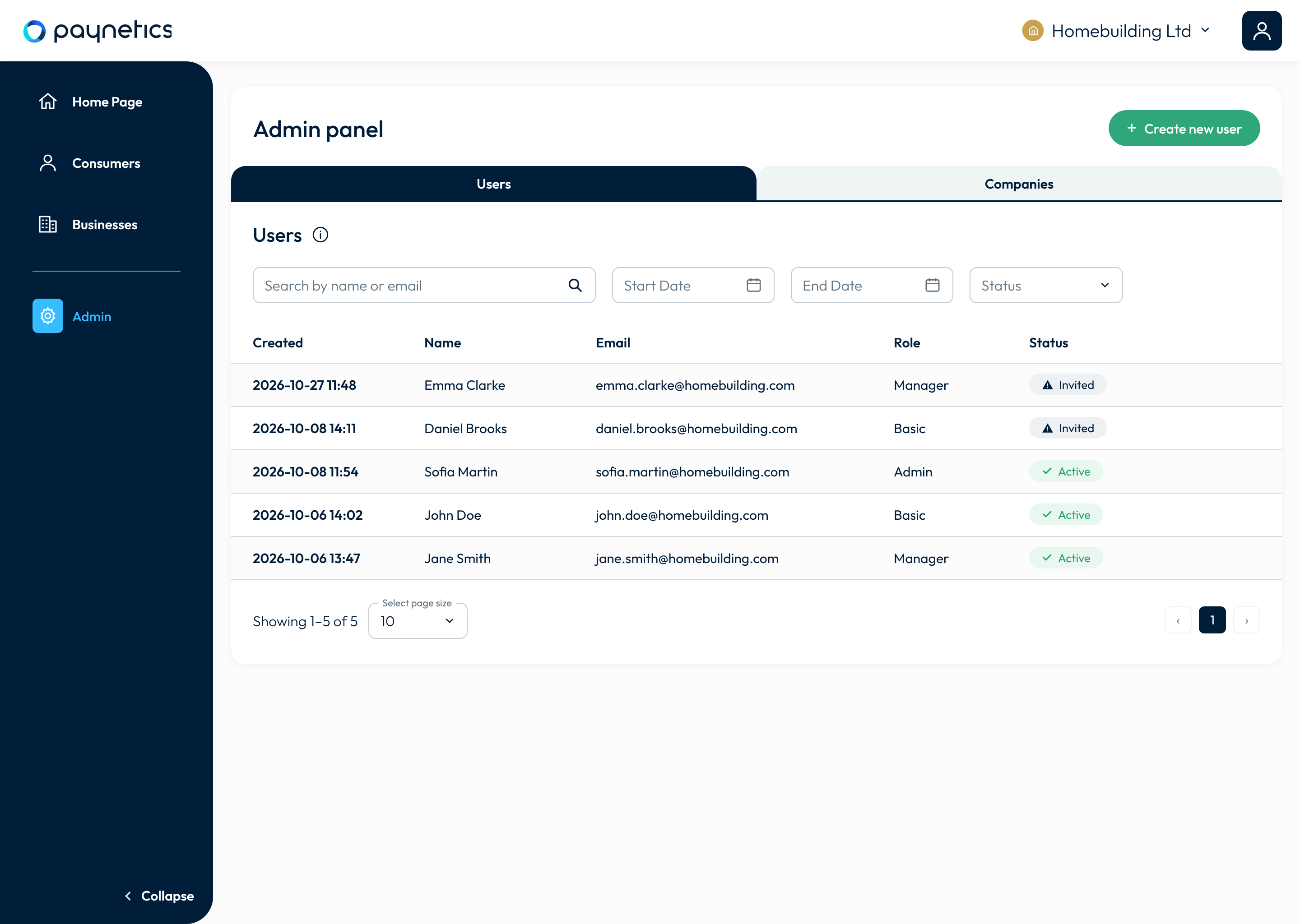 The users list — search, filter and see each user's role and status.
User statuses
Invited — created, but hasn't yet set a password and two-factor authentication. Can't sign in until set-up is complete.
Active — working normally.
Locked — access suspended by an Admin, or automatically after repeated failed sign-in attempts. Can't sign in until unlocked.
Deactivated — blocked permanently. This can't be undone.
Create a user
Press Create new user.
Enter the person's email, mobile phone, first name and last name.
Choose one or more companies — only companies you have access to yourself are offered.
Choose a role: Admin, Manager or Basic.
Press Create user.
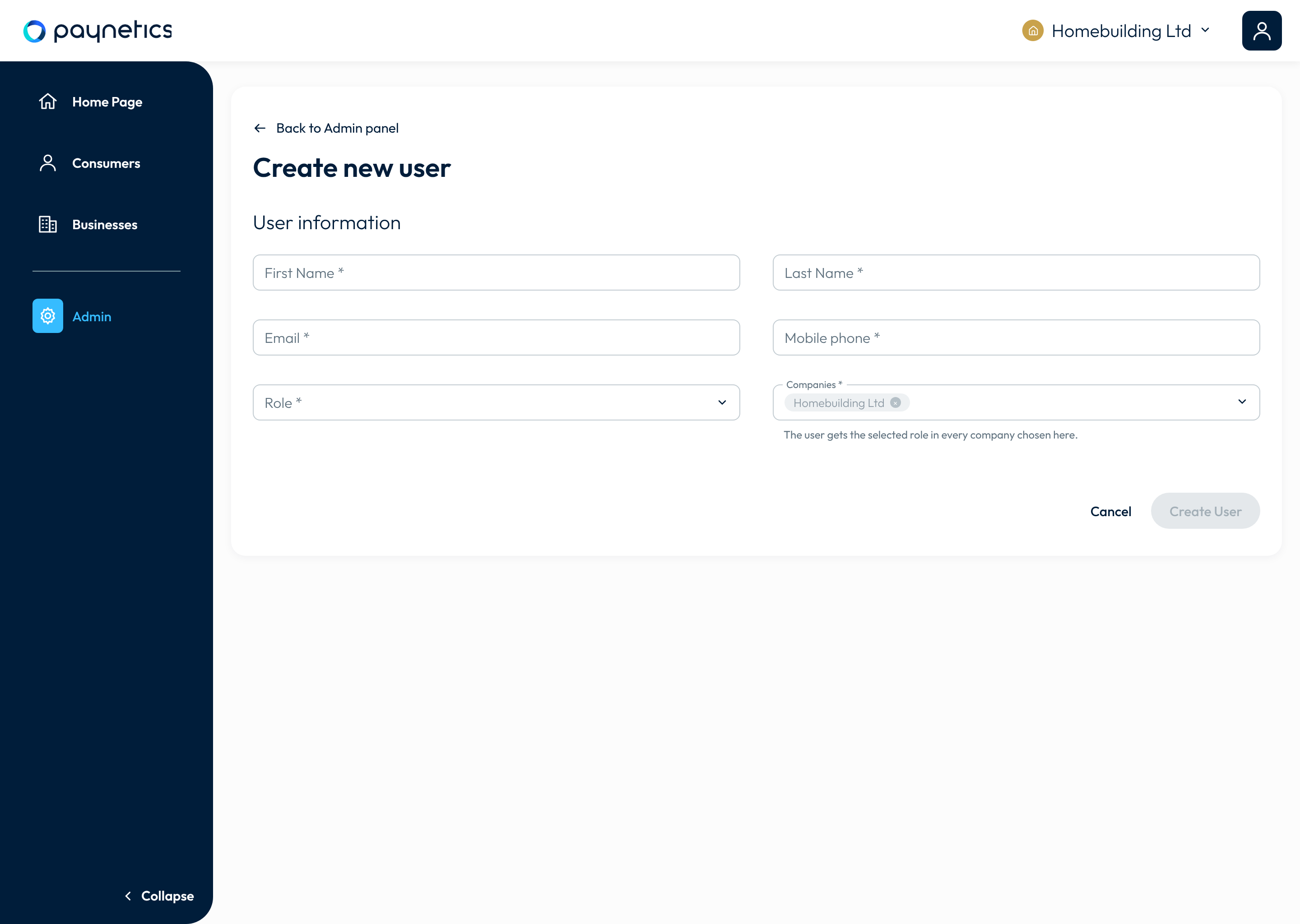 The Create new user form.
The user is created as Invited and receives an invitation email. From the link, they set a password and set up Google Authenticator, and become Active. While a user is Invited, their role and companies can't be changed.
Manage a user
Click a user's name to open their page. It shows their contact details, account ID, date created, last sign-in, two-factor authentication status, status, role, and the companies you share with them. Only the actions you're allowed to take are shown, and each asks for confirmation before anything happens.
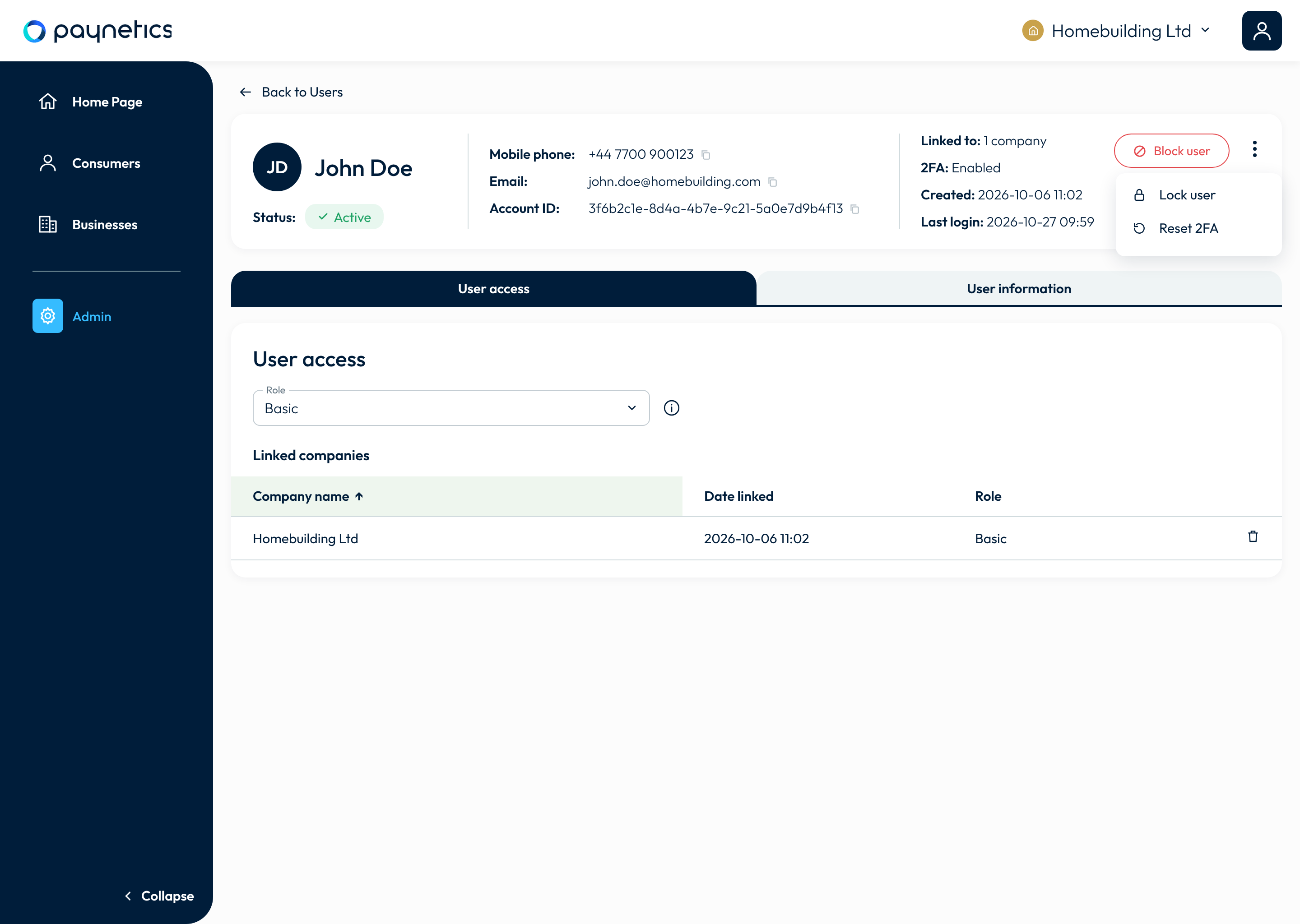 A user's page — their details, role and companies, and the actions you can take.
Edit information — change first name, last name and mobile phone. Email can't be changed.
Lock / Unlock — lock an Active user to sign them out and stop them signing in; unlock to restore access. Unlocking also releases users locked after failed sign-in attempts.
Reset two-factor authentication — for users who have lost their authenticator. They are signed out and set up Google Authenticator again at their next sign-in; their password doesn't change, and they get an email about it.
Resend invite — for Invited users. A new email is sent and the old link stops working.
Change role — the new role applies across all their companies from their next action in the portal.
Add or remove a company — changes what data they can see. You can remove a user's only company; they keep their login but see no company data until one is added again.
Block — ends the user's access permanently.
Warning — Blocking can't be undone — a blocked user can't be reactivated. To suspend someone temporarily, lock them instead.
Who you can manage as an Admin
You can manage any user who has at least one company in common with you — including other Admins.
To change a user's role, you need every company that user has.
To add a company, you need to have access to that company yourself.
To remove a company, you need to have access to that company yourself.
You can't manage your own account, role or companies.
Tip — Keep at least two Admins, so one can unlock or reset the other.
What Admins can't do
Delete a user or cancel an invitation — block the user instead.
Give anyone access to a company they don't have access to themselves.
Take operational actions, such as withdrawing funds.
Choose who can withdraw funds, or register destination accounts — contact Paynetics support. See Withdraw funds.
Good to know
Paynetics staff may have access to your company's data so they can support you. They don't appear in your users list and can't be managed by you.
Every action is recorded — who did it, what changed and when — including every change to a user.